> ## Documentation Index
> Fetch the complete documentation index at: https://docs.cryptoprocessing.com/llms.txt
> Use this file to discover all available pages before exploring further.
# Retrying failed mass payouts
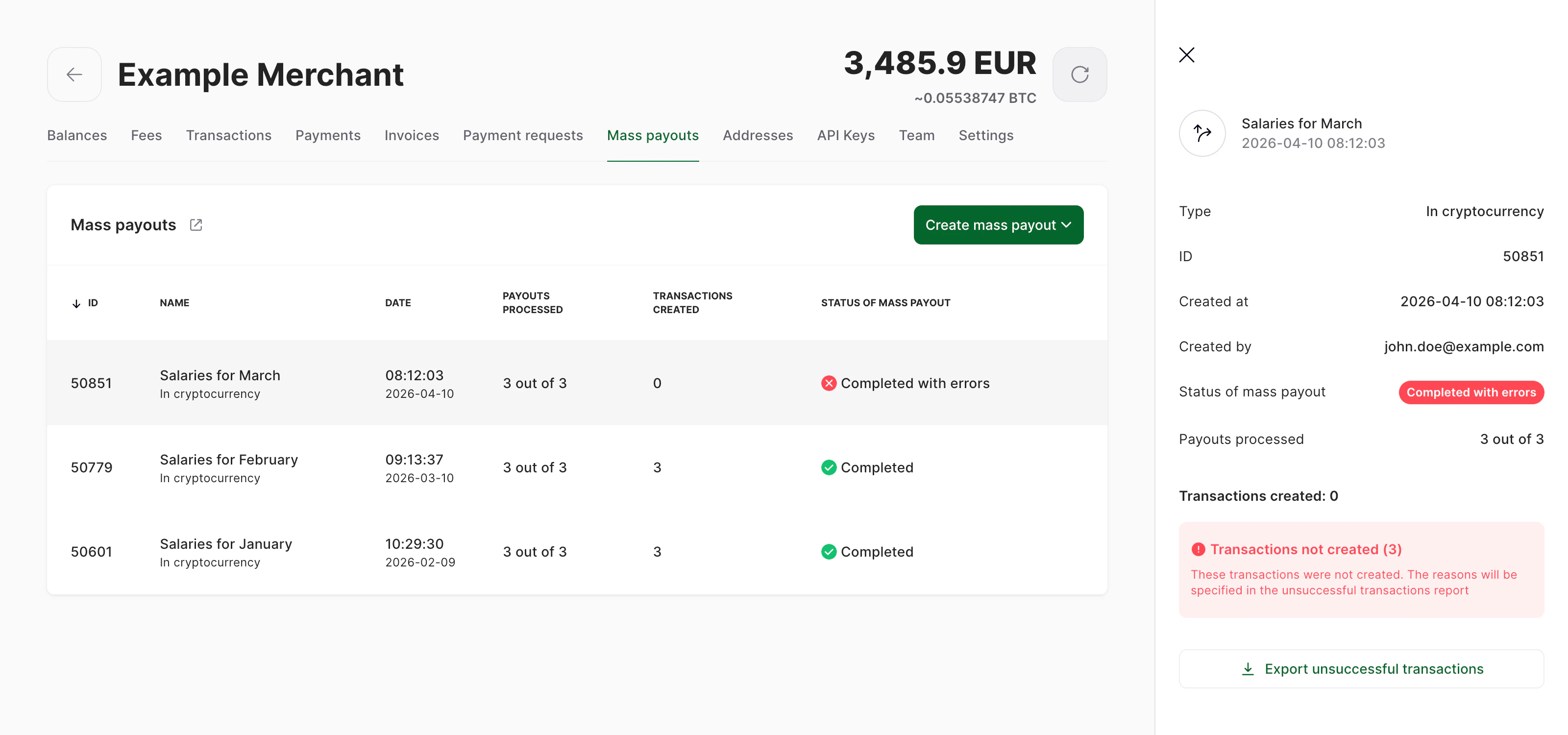
For a mass payout with at least one failed item in it (either a failure in creating a transaction or an unsuccessful transaction), the panel in the merchant dashboard contains the **Export unsuccessful transactions** button. Click the button to download a modified version of the original CSV file, with all successful transactions removed.
The button for downloading the file appears as soon as at least one failure occurs during the mass payout. The file may change after that if more transactions will be unsuccessful.
 Besides the original data, the file contains additional columns:
* **Status** — either the status of an unsuccessful transaction (*Failed*, *Declined*, *Canceled*) or *Not created* if CryptoProcessing failed to create a transaction based on this data row.
* **Error** — an error message explaining why the transaction was unsuccessful.
If you believe that the cause of the errors is fixed (you added more funds to your balances, you added a missing Tag field, etc.), you can remove the **Status** and **Error columns** from the CSV file and use it for initiating a new mass payout.
Besides the original data, the file contains additional columns:
* **Status** — either the status of an unsuccessful transaction (*Failed*, *Declined*, *Canceled*) or *Not created* if CryptoProcessing failed to create a transaction based on this data row.
* **Error** — an error message explaining why the transaction was unsuccessful.
If you believe that the cause of the errors is fixed (you added more funds to your balances, you added a missing Tag field, etc.), you can remove the **Status** and **Error columns** from the CSV file and use it for initiating a new mass payout.